Instagram stories are tall: 9:16, and 1080 × 1920 pixels is the size Instagram works to. A photo that isn't that shape gets cropped or padded by the app, usually not where you would have chosen. Cropping it yourself first means you decide what stays.
The same goes for posts, at 4:5 (1080 × 1350) for portrait or 1:1 (1080 × 1080) for square.
Crop to a story in Imaginator
- Open the photo in Imaginator: right-click it in Finder and choose Quick Actions → Edit with Imaginator.
- Press C for the crop tool, or click the crop icon in the column on the left.
- Choose the story shape (9:16) in the bar across the top. The box takes the largest 9:16 crop that fits; drag inside it to move it, or drag a corner to tighten it.
- Straighten it if the horizon leans. The Straighten slider sits in the same bar, with a grid over the photo while you drag.
- Press Return, then ⌘S to save.
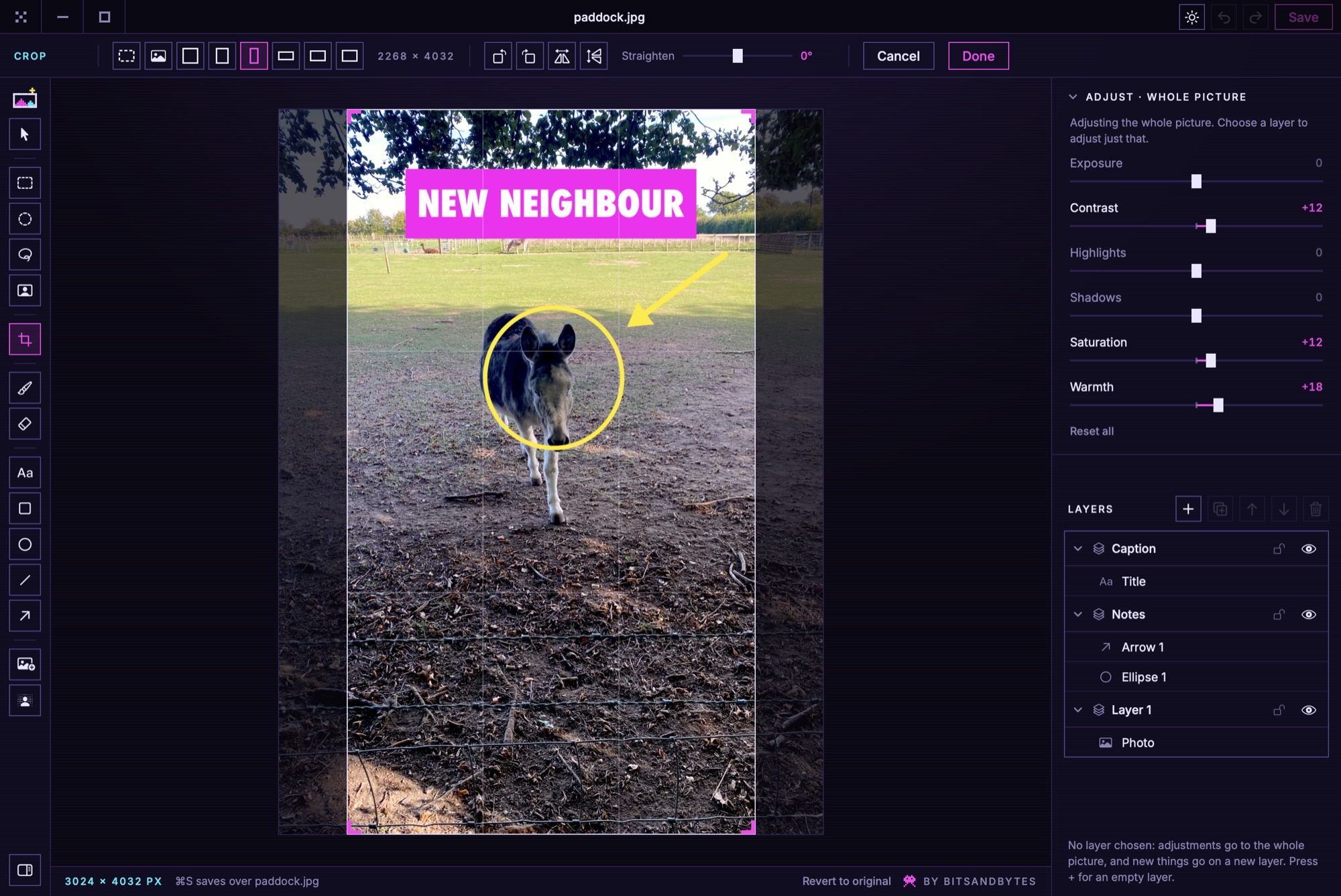
Exactly 1080 × 1920
Cropping keeps every pixel the photo had, and Instagram scales it down. If you'd rather hand it exactly 1080 × 1920, start the other way: open Imaginator on its own and pick Story from the new-canvas sizes, then Add a picture to bring the photo in, size it and save. That's also the way to put a photo on a coloured background with a caption above it.