You don't need a website or a subscription to cut a subject out of a photo. Recent versions of macOS have a model for it built in, and it runs on your Mac, so the photo never leaves it.
The quickest way: Finder
On macOS 13 or later, right-click a photo in Finder and choose Quick Actions → Remove Background. You get a new PNG beside the original with the background gone. Preview has the same thing under Tools → Remove Background.
That's ideal when the cut-out is all you need.
When you want to keep going: Imaginator
If the cut-out is the start of something (a product shot on a clean canvas, a caption beside the subject, a crop for a story), Imaginator uses the same on-device model but leaves you in an editor.
- Open the photo in Imaginator: right-click it in Finder and choose Quick Actions → Edit with Imaginator.
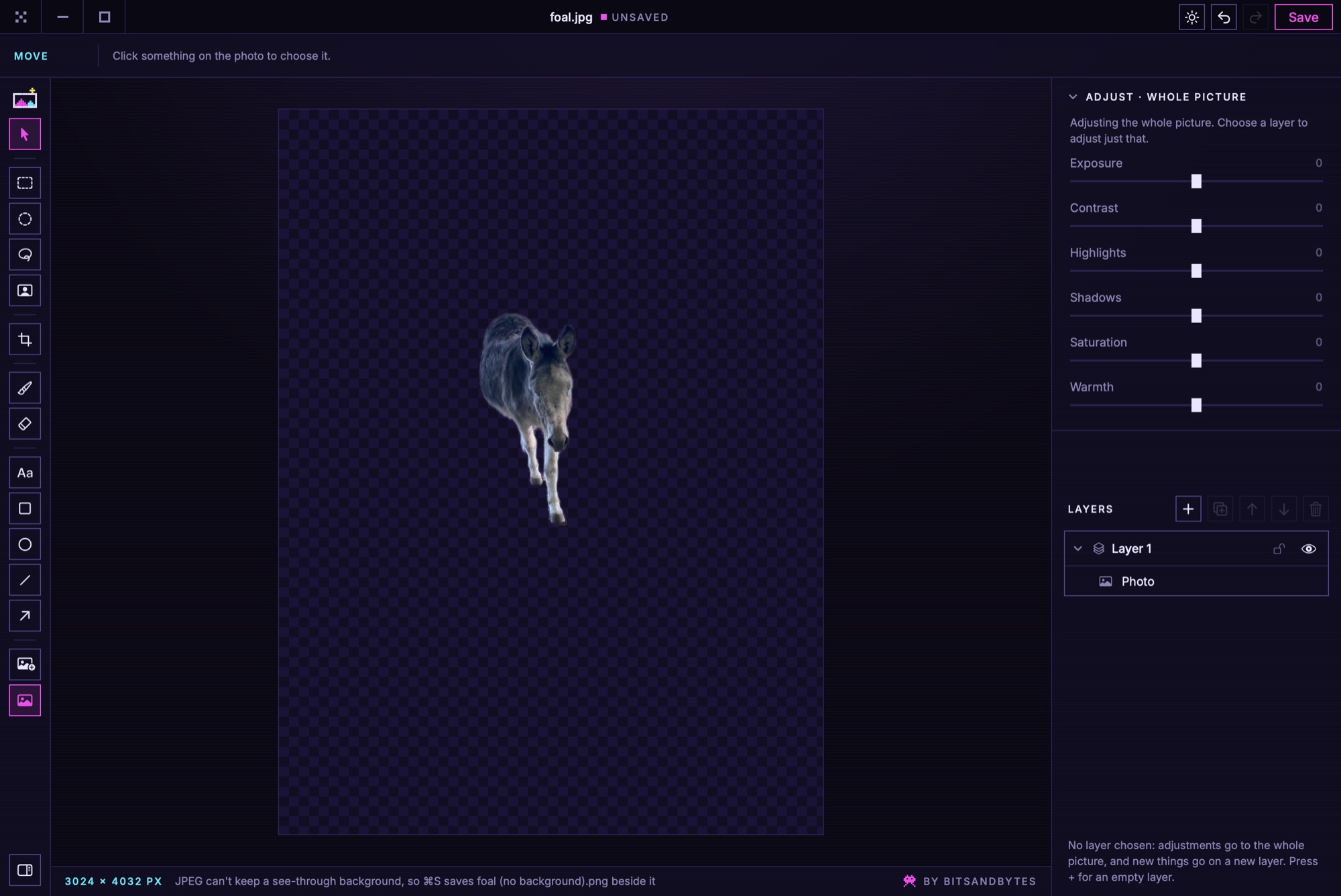
- Click Remove the background, the last tool in the column on the left. A second or two later the background is gone, shown as the usual grey and white checks.
- Carry on. Crop it, add text or shapes, or change the light and colour. Prefer to keep the background and just lift the subject onto its own layer? Use Select the subject instead, and the photo stays whole underneath.
- Press ⌘S. A JPEG can't hold a see-through background, so Imaginator saves a PNG beside it (photo (no background).png) and leaves the JPEG as it was.
Changed your mind? Put the background back is the same button, and every step can be undone.