Preview can save small changes back into a file, and Photos can do a great deal once a picture is in your library. But the moment a quick fix wants a little more, a caption you can still move later, a cut-out or a crop for a story, you're into Export sheets and format choices, or importing a copy into Photos that you then have to get back out.
Imaginator is built the other way round: open the photo where it is, change it, press ⌘S, and it's saved back into the same file.
Edit it in place
- Install Imaginator. Download it, open the disk image and drag Imaginator into Applications. The first time, right-click it and choose Open: it isn't signed with a paid Apple certificate yet, and macOS asks once.
- Right-click the photo in Finder and choose Quick Actions → Edit with Imaginator. You can also drop the photo onto the app, or open the app and choose it.
- Make your changes. Crop and straighten, adjust the light and colour, add text, shapes or another picture, paint, or take the background away.
- Press ⌘S. The edit is saved over the original, as the same kind of file, with its camera details kept.
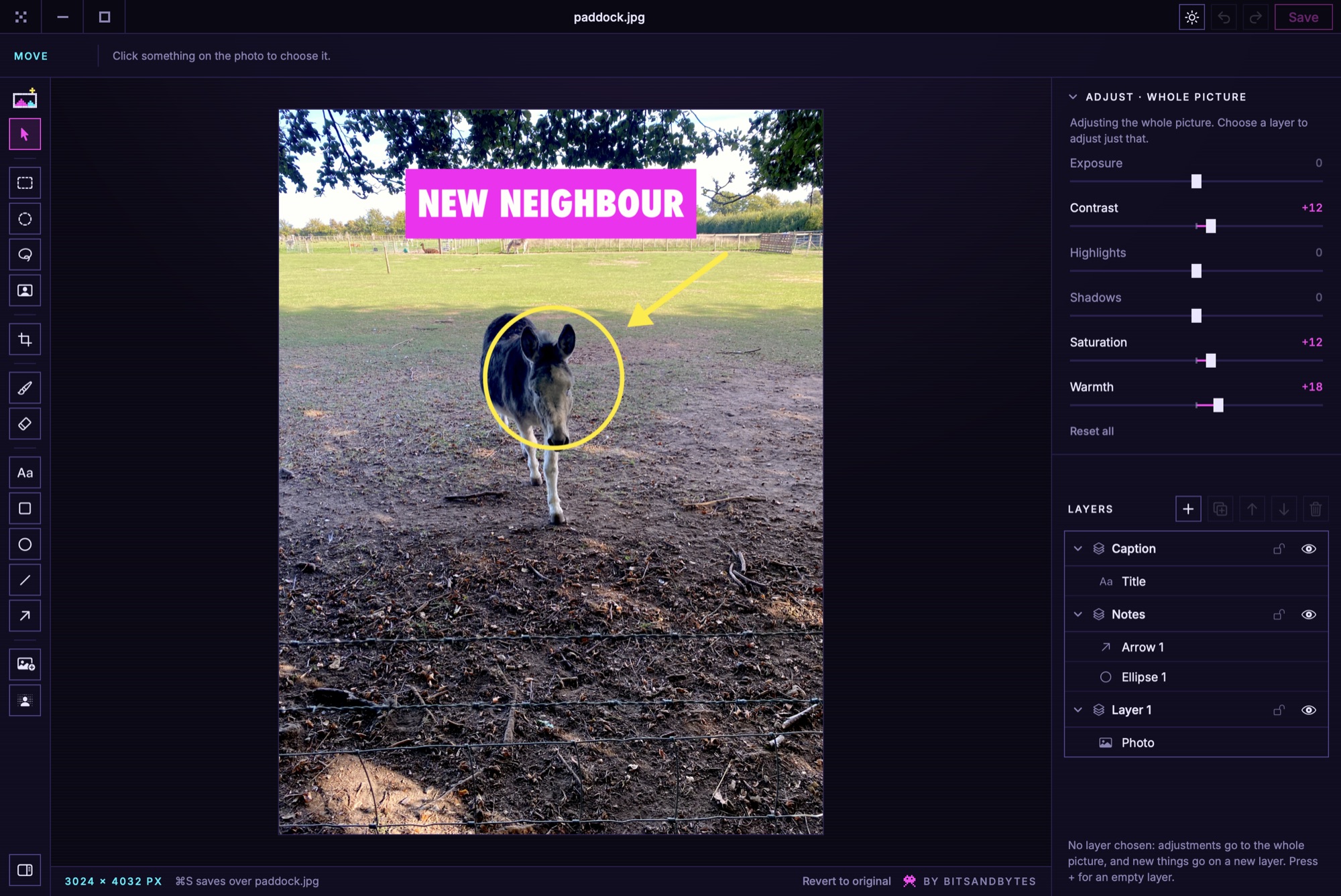
The original is kept anyway
The first time you save over a photo, Imaginator keeps the untouched original for thirty days, along with your layers. File → Revert to Original puts it back, even after you've quit, and opening the photo again brings the layers back so you can carry on.
If an edit needs something a JPEG can't hold, such as a see-through background, Imaginator saves a PNG beside the original instead of quietly filling it in. It tells you at the bottom of the window before you save.
Make it one keystroke
Quick Actions can have a keyboard shortcut. In System Settings → Keyboard → Keyboard Shortcuts → Services, find Edit with Imaginator under Files and Folders and give it a shortcut. Then select a photo in Finder, press the keys, and it opens.